
Customer order history
The customer card: statistics, contact details, consents, crates and a list of all orders.
Last updated:
How to open the customer card
You open the customer card from the list in the Customers module: click the row, and in the “Edit customer” window choose “See more”. The card brings together statistics, contact details, marketing consents, notes, crates and all orders in one place.
- In the Customers module click the customer's row
- In the “Edit customer” window click “See more”
- The “Customers” link in the top left corner of the card goes back to the list
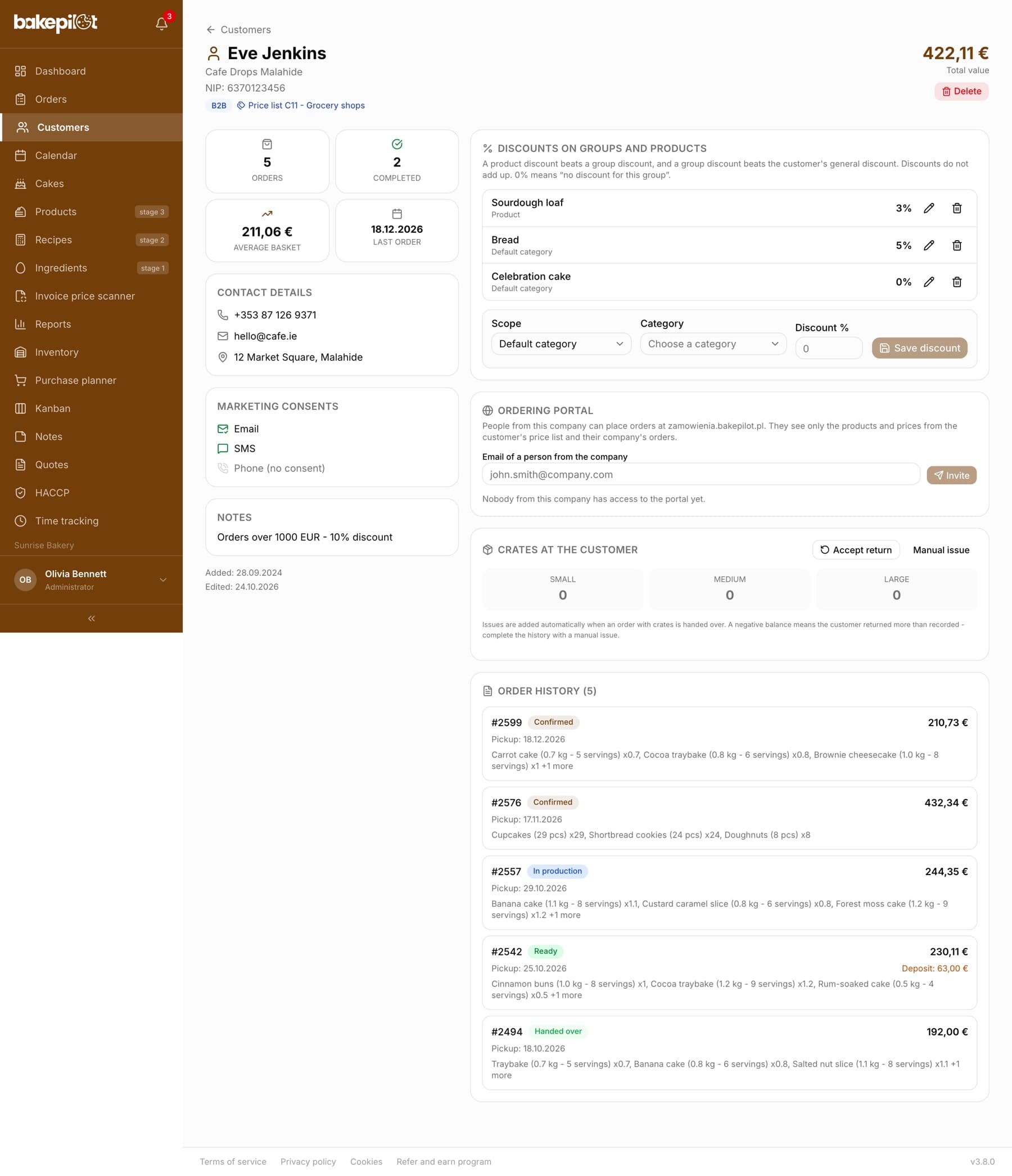
Customer statistics
At the top of the card there are four tiles: “Orders”, “Completed”, “Average basket” and “Last order”, and in the top right corner “Total value”. The total value and the average basket count only completed orders, i.e. those with the Ready or Handed over status - cancelled orders and drafts do not inflate the result. Statistics and order history on the customer card are available in the Profesjonalny (Professional) plan and higher. An employee assigned to branches sees only the orders of their branches in the statistics and the history.
- “Orders” - all of the customer's orders, regardless of status
- “Completed” - orders with the Ready or Handed over status
- “Total value” and “Average basket” - calculated from completed orders
- “Last order” - the pickup date of the most recent order
Tip: You will find a ranking of the bakery's most valuable customers in the Analytics module - see the “Customer analysis” article.
Order history
The “Order history” section lists orders from the latest pickup date. Each entry shows the number, status, amount, pickup date, deposit (if any) and the first three items with quantities. Clicking an entry opens the order details. An employee assigned to branches sees only the orders of their branches here.
- Order number and a colored status (e.g. Draft, In production, Handed over, Cancelled)
- “Pickup” - the pickup date, with the order amount next to it
- “Deposit” - if one was recorded
- Items: name and quantity, with a “+N more” note for longer orders