
Ordering portal for wholesale customers
Step by step: how to prepare a price list, invite a person from the customer's company, how the customer places an order on zamowienia.bakepilot.pl and how you accept it in “Portal orders”.
Last updated:
What the portal is for
The ordering portal is a separate address, zamowienia.bakepilot.pl, where people from a business that buys from you wholesale (a cafe, shop or hotel) place orders themselves instead of calling or writing. They see only the products and prices from the price list assigned to their company and their company's orders - never other customers, costs, recipes or the bakery's notes. A portal order does not go straight to production: it waits until you accept it. The portal is available in the Mistrzowski (Master) plan.
- Customers are not employees: they have no access to the BakePilot panel and do not count towards the plan's user limit
- By default the owner (administrator) can send invitations. You can enable it for other roles in the permissions matrix - the “Ordering portal (invitations)” item
- Anyone who has the right to create orders can accept and reject portal orders
Step 1: prepare a price list for the customer
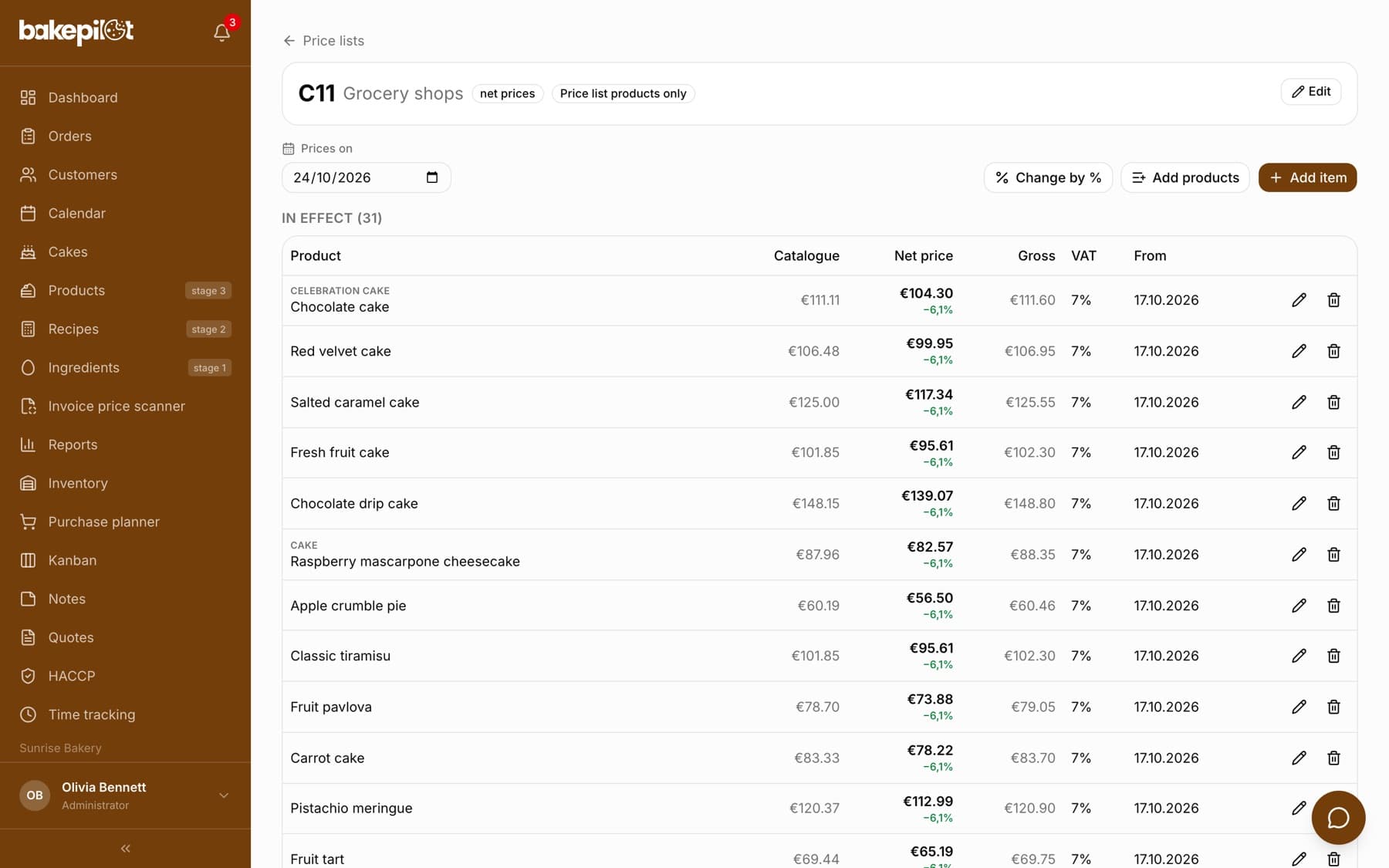
The portal shows the customer only what is in their price list, so you start with the price list. In the customer records the customer must be a wholesale (B2B) customer with an assigned price list that has “The customer sees only products from this price list” turned on (the price list card then shows the “Price list products only” badge).
- Go to Products, the Price lists tab, and open a price list or create a new one
- Click “Edit” and tick “The customer sees only products from this price list”
- Add products: “Add products” inserts a whole group (e.g. “Group: Bread”) with catalog prices, “Add item” adds a single product with its own price
- If the customer should have prices lower than the catalogue, click “Change by %”, choose “Decrease”, enter the percentage and save
- Assign the price list to the customer with the “Assign customer” button in the “Customers with this price list” section (or on the customer card)
- The “Catalogue” column shows the price from the product catalogue, and under the price list price you see the difference as a percentage, e.g. “−5%”. The column is visible on a wider screen
- When the price list limits the assortment but has no items yet, the “Customers with this price list” section warns that the customer will see an empty list in the portal
- The customer sees prices calculated the same way as in an order entered in the panel: from the price list, with the customer's general discount and with date-range promotions
Step 2: invite a person from the company
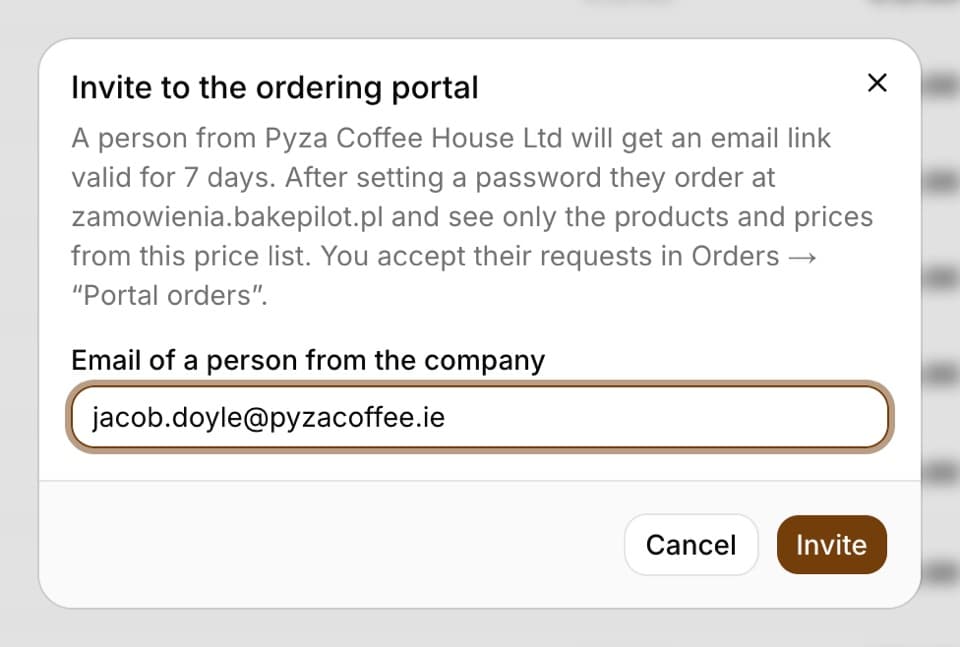
The simplest way is to invite the customer straight from the price list card. In the “Customers with this price list” section there is an “Invite to portal” button next to each customer (it appears only for a price list with “The customer sees only products from this price list”). The window tells you what the invited person will get: an email with a link valid for 7 days and, after setting a password, access to ordering the products from this price list.
- On the price list card, in the “Customers with this price list” section, click “Invite to portal” next to the customer
- Enter the “Email of a person from the company” - the address of the person who will place orders
- Click “Invite” - the message “Invitation sent.” appears
- You can invite several people from one company - each gets their own account and sees the whole company's orders
- An address that is already an employee account in the BakePilot panel cannot be invited to the portal - use a different address
Invitations and access on the customer card
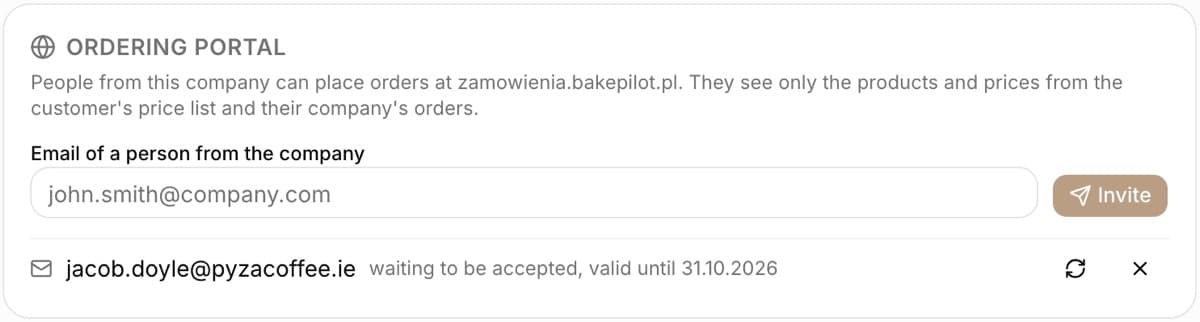
The same form is on the wholesale customer's card, in the “Ordering portal” section. There you also see who has access and who has not yet accepted the invitation. Without a price list that limits the assortment, the section tells you what is missing instead of showing the email field.
- A pending invitation has the note “waiting to be accepted, valid until” and a date; after 7 days - “invitation expired”
- “Send again” (the arrows icon) sends a new link for another 7 days - the previous link stops working
- “Withdraw invitation” (the cross icon) cancels the link before anyone uses it
- Next to a person who already has an account you see the date of their last sign-in (“last seen:”) or “has not signed in yet”
- “Revoke access” closes the portal for the person immediately - on their next click they will see that they have no access
What the customer gets: the invitation email
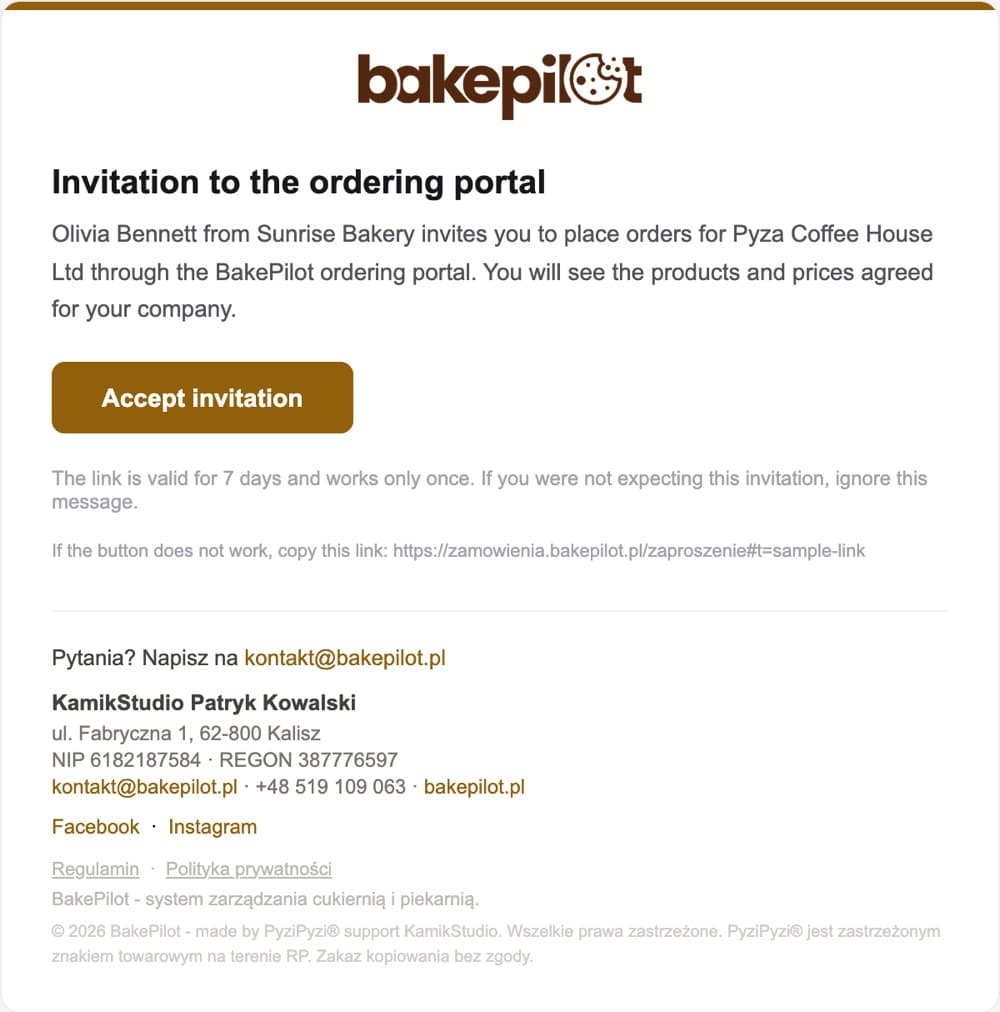
The invited person gets an email “… invites you to the ordering portal” with your bakery's name, their company's name and an “Accept invitation” button. The email is in the language set for your organization. The link works once and expires after 7 days.
The customer creates an account
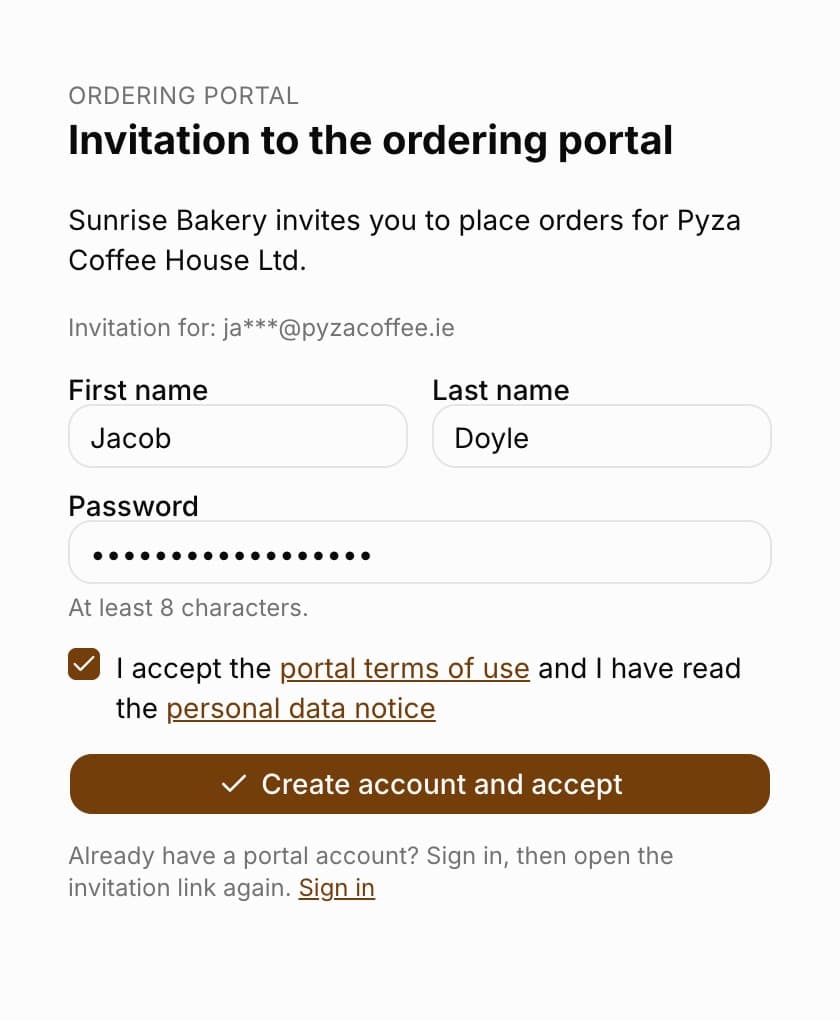
After clicking “Accept invitation”, the customer sees which bakery is inviting them and which company they will order for, plus the masked address the invitation was sent to. They enter their first name, last name and a password, accept the portal terms of use and go straight to ordering.
- The customer clicks “Accept invitation” in the email
- Enters their “First name”, “Last name” and “Password” (at least 8 characters)
- Ticks acceptance of the portal terms of use and the personal data notice
- Clicks “Create account and accept”
Tip: Someone who already has a portal account (e.g. orders from another bakery) signs in and then opens the invitation link again - the new company is added to the same account.
Signing in and forgotten password
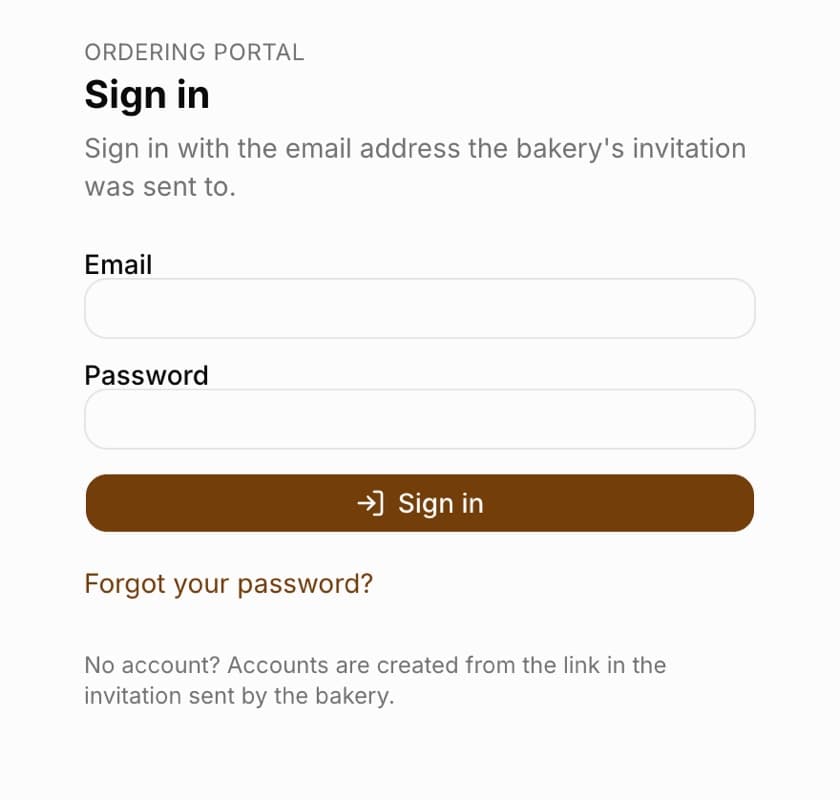
The customer signs in on zamowienia.bakepilot.pl with the email address the invitation was sent to and their password. This is a separate sign-in from the bakery panel - a BakePilot employee account cannot enter the portal and vice versa.
- “Forgot your password?” sends a link to set a new password to the account's address
- In the “Account” tab the customer changes the portal language and theme (light, dark or as in the system) and signs out
- A person who orders for several companies or from several bakeries chooses “Who are you ordering for?” after signing in, and has a “Switch company” button under “Account”
How the customer places an order
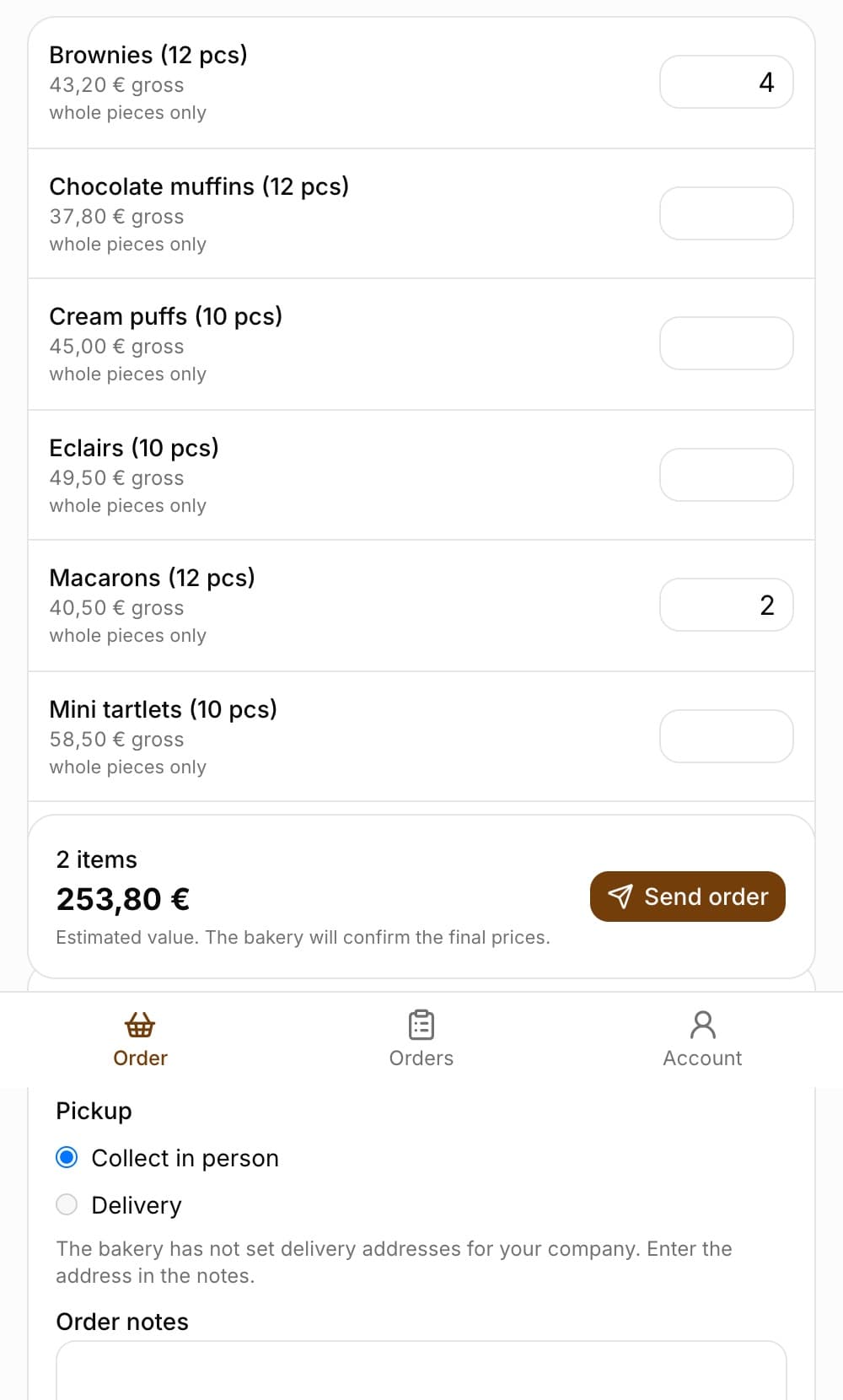
After signing in, the customer is in the “Order” tab. At the top they see your bakery's name and “Ordering for:” with their company. They choose the pickup date, and the list shows the products and prices in effect on that day. Next to the date there is a search box, and under it the product categories - with a long price list the customer types e.g. “ice cream” or clicks a category and sees only those items. They enter a quantity next to each product, and at the bottom they see the number of items and the value as they go.
- The customer sets the “Pickup date” - tomorrow at the earliest
- Searches for a product in the “Search” field (by product and variant name; upper and lower case and Polish characters do not matter) or narrows the list with a category, e.g. “Ice cream”; “All” goes back to the full list
- Enters quantities next to the products (products marked “whole pieces only” can be ordered only in whole pieces)
- Checks the summary at the bottom: the number of items and the value
- The price next to a product is in the price list mode, e.g. “43.54 PLN net + VAT 8%” for a net price list
- The value at the bottom is an estimate - the final prices are set when you accept the order
- Products priced as tray portions or in the cake configurator do not appear in the portal
- The categories are the same ones you see on products: your own category from Settings replaces the default one; the portal shows only categories that contain products from the customer's price list
- Entered quantities stay in the cart after changing the category or search phrase - the filter only hides items from the list
- A product weighed at hand-over has the note “price per kg - amount after weighing at hand-over”
- When you hand over goods from orders and the customer orders more than there is in the hand-over warehouse, the order is still sent, and the customer sees “Some quantities exceed the stock - the bakery will confirm how much it can hand over” - without the number of pieces in stock; you get a “Portal order above stock” notification with a list of products
Pickup, delivery and notes
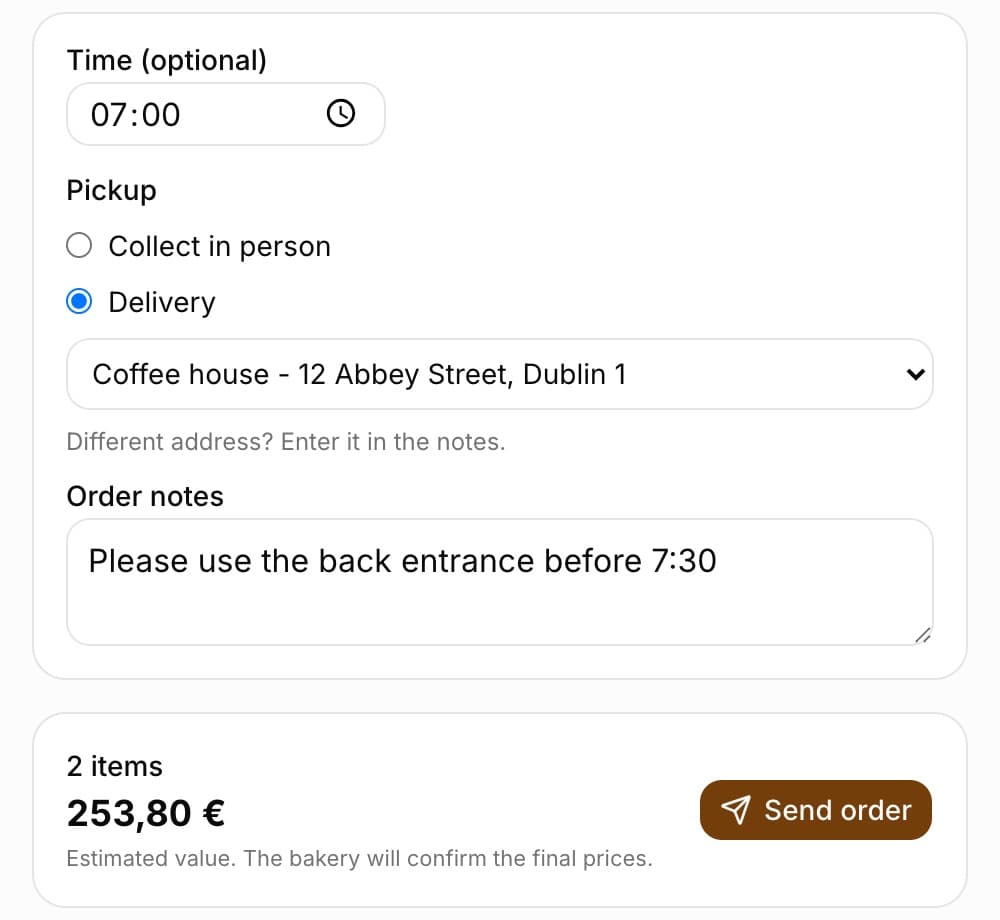
Below the product list the customer can give a time, choose “Collect in person” or “Delivery” and add notes. For delivery they choose one of the delivery addresses saved on the customer card. They cannot pick a different address from the list - they enter it in the notes. Finally they click “Send order”.
- When the customer has no delivery addresses in their record, the portal asks them to enter the address in the notes
- After sending, the customer sees the message “Order sent. The bakery will confirm it.”
The customer's orders: editing and cancelling
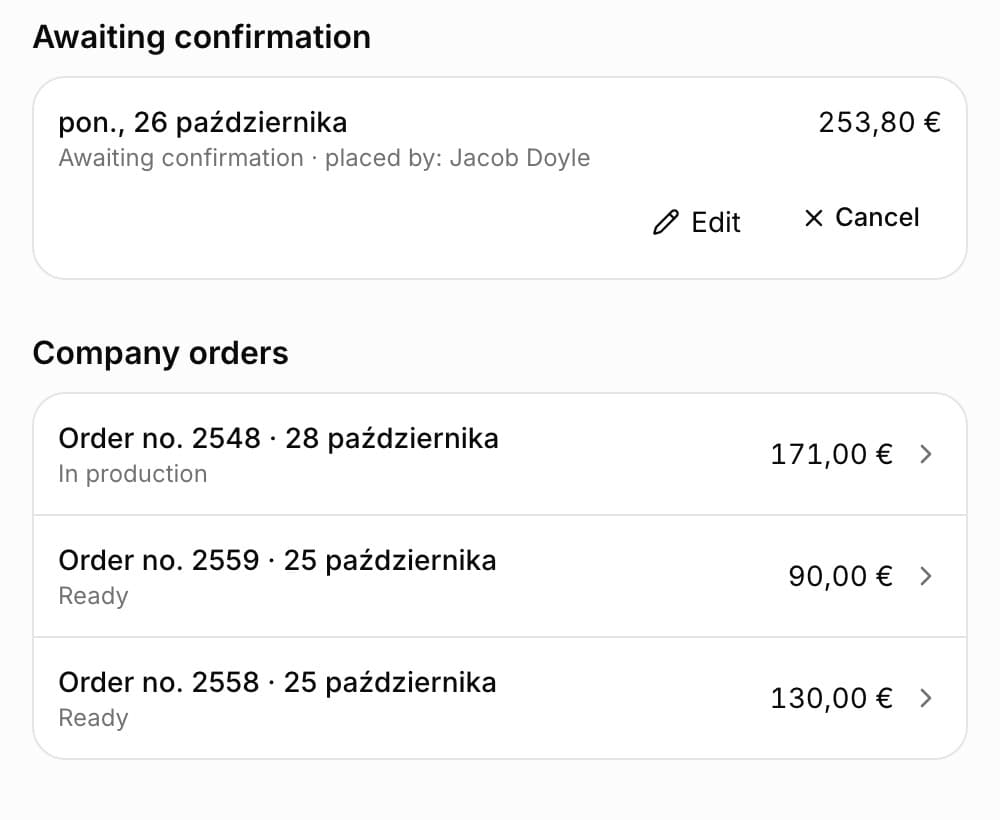
In the “Orders” tab the customer sees two lists. “Awaiting confirmation” are orders waiting for the bakery's decision - with “Edit” and “Cancel” next to them. “Company orders” are orders already accepted, with a number and status, including the ones you entered in the panel after a phone call (without your notes).
- Editing a pending order ends with the message “Changes saved. The order is still awaiting confirmation.”
- After your decision the customer gets an email: about the acceptance (with the order number) or the rejection (with the reason)
- The customer can no longer change an accepted order - you agree on corrections as before and enter them in the panel
Step 3: accept or reject the order
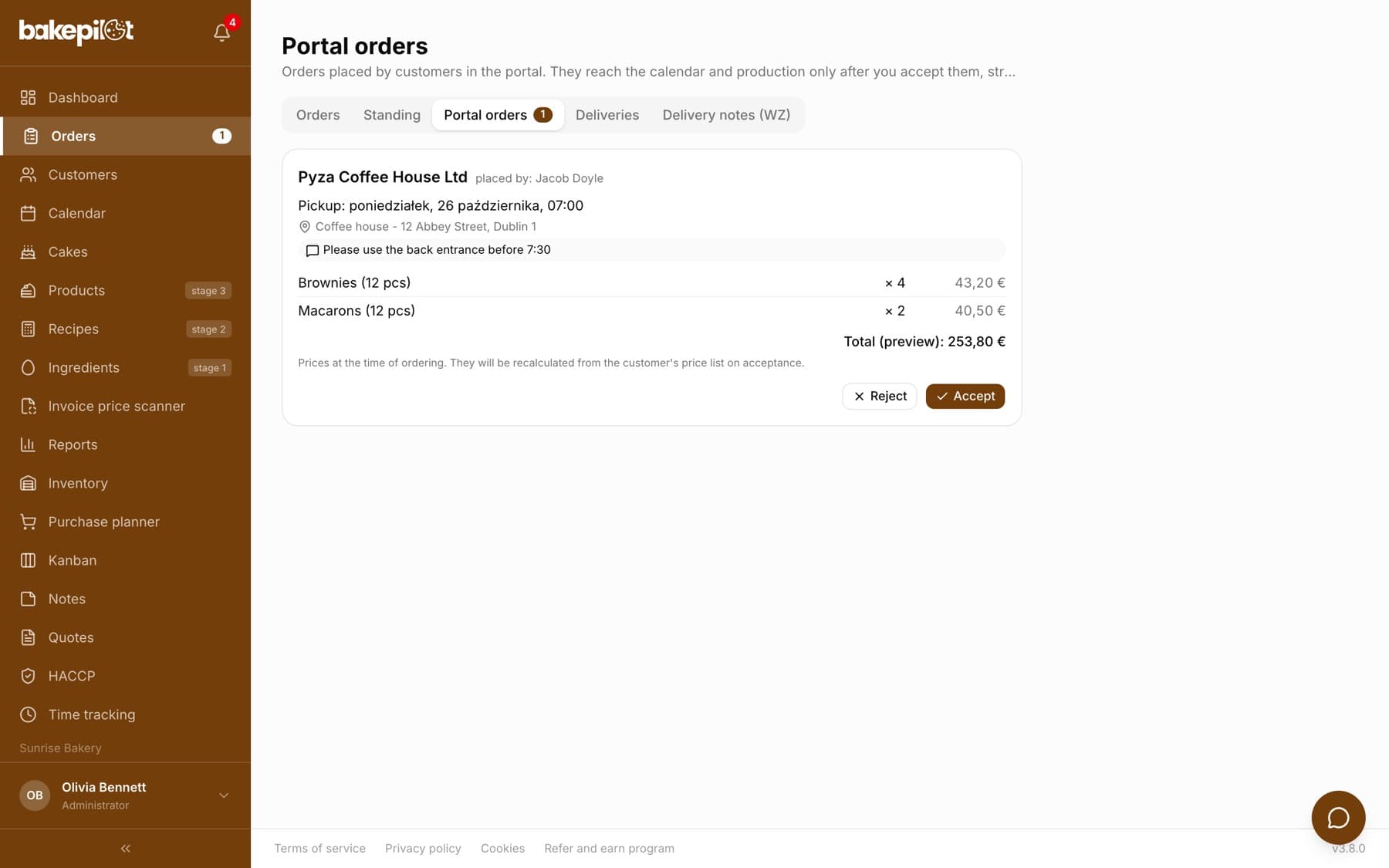
A new portal order waits in “Portal orders”. You get there with the “Portal orders” button on the order list, and on a computer the number of waiting orders is shown next to “Orders” in the side menu. People with access to this customer also get a “New portal order” notification in the mobile app. In the inbox you see the company, who placed the order, the pickup date and time, the delivery address, the customer's notes and the items.
- In Orders open the “Portal orders” tab (the number next to it is the requests waiting for a decision)
- Check the items, pickup date, address and the customer's notes
- Click “Accept” - the order goes onto the order list straight away as Confirmed
- Or click “Reject”, enter the “Reason for rejection” and click “Reject order”
- Prices in the inbox are from the moment the order was placed. On acceptance they are recalculated from the customer's price list for the pickup day - if something has changed (e.g. a new price from the pickup day or the end of a promotion), the old price is crossed out next to the new one, and below the list you see how many items have a different price
- An employee assigned to branches sees only the orders of customers of their branches
- The “Recently processed” section shows the latest decisions, with an “Open order” link next to accepted ones
After acceptance
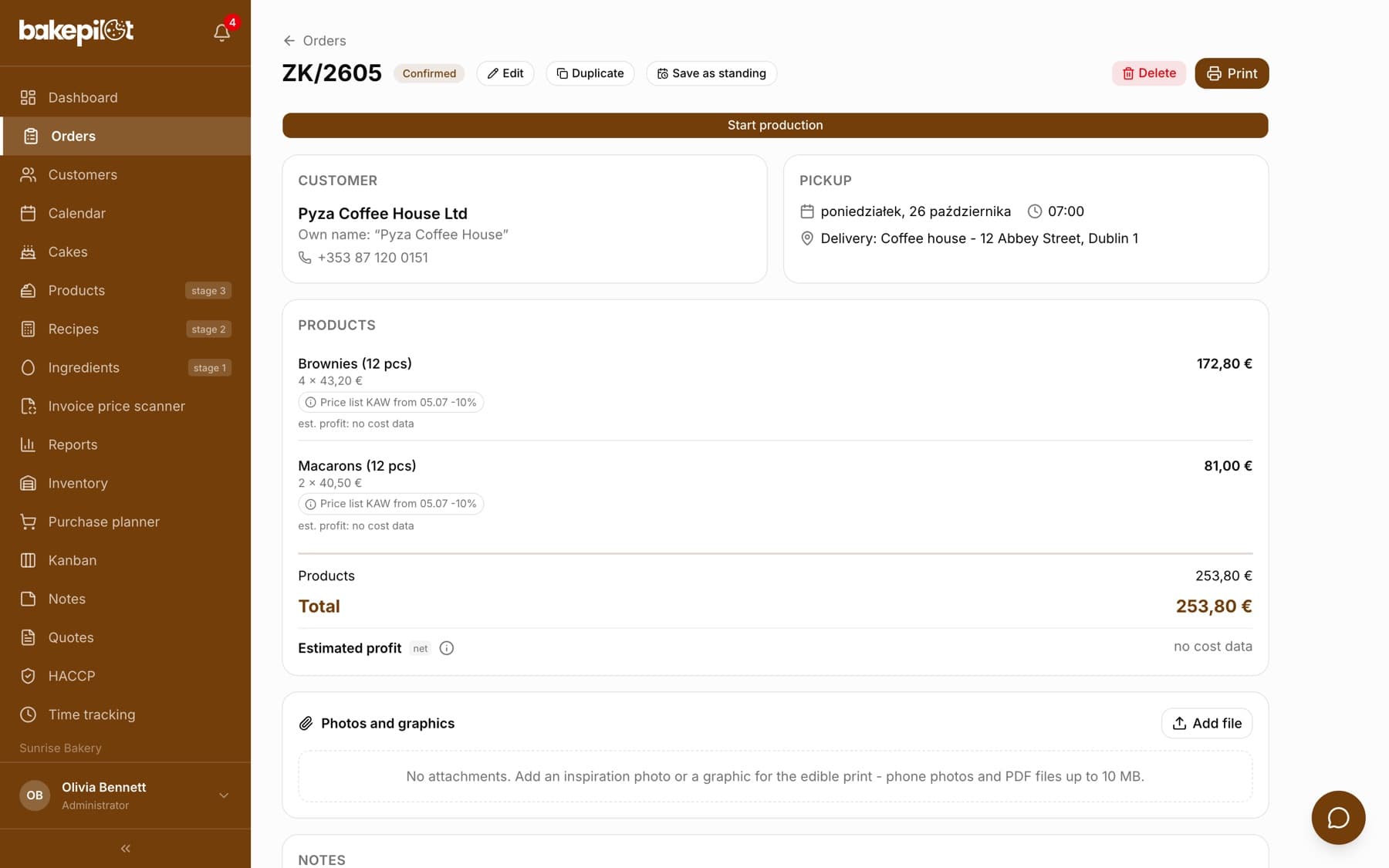
An accepted order is a regular order: it has a number and the Confirmed status, it goes into the calendar and the production list, and it can get a delivery note (WZ). Item prices come from the customer's price list (with the customer discount), and the time and delivery address from the portal. The order change history has an “Order source” entry saying who placed it in the portal.
Frequently asked questions
Can the customer see other customers' prices or other companies?
No. The customer sees only the products and prices from their company's price list and their company's orders.
Do customer accounts count towards the user limit?
No. Customers are not employees of the bakery and have no access to the panel.
Why is there no “Invite to portal” button next to the customer?
The button appears only in the Mistrzowski (Master) plan, for people with the “Ordering portal (invitations)” permission and for a price list with “The customer sees only products from this price list” ticked. The customer must be a wholesale (B2B) customer.
The customer did not get the invitation email. What should I do?
Ask them to check the spam folder. Then on the customer card, in the “Ordering portal” section, click “Send again” next to the invitation - you will send a new link valid for 7 days.
Does a portal order go straight to production?
No. First it waits in “Portal orders”. Only after “Accept” is an order created with the Confirmed status, and it goes into the calendar and the production list.