
Creating a quote
Price quotes for weddings and events - customer, event, items, validity date, printing and sending by email.
Last updated:
Why use quotes
A quote is a price proposal you send to a customer before they order - a couple asks about a wedding cake and a dessert table, a company about catering for a conference. Instead of calculating it in a message, you create a document numbered OF/… with the event details, items and a validity date, then print it to PDF or email it straight from BakePilot. The Quotes module is available in the Profesjonalny (Professional) and Mistrzowski (Master) plans.
- Quote = a price proposal, not an order
- The OF/… number is assigned automatically
- Event details: type, name, date, venue, number of guests
- Printout with your company details or sending by email from the app
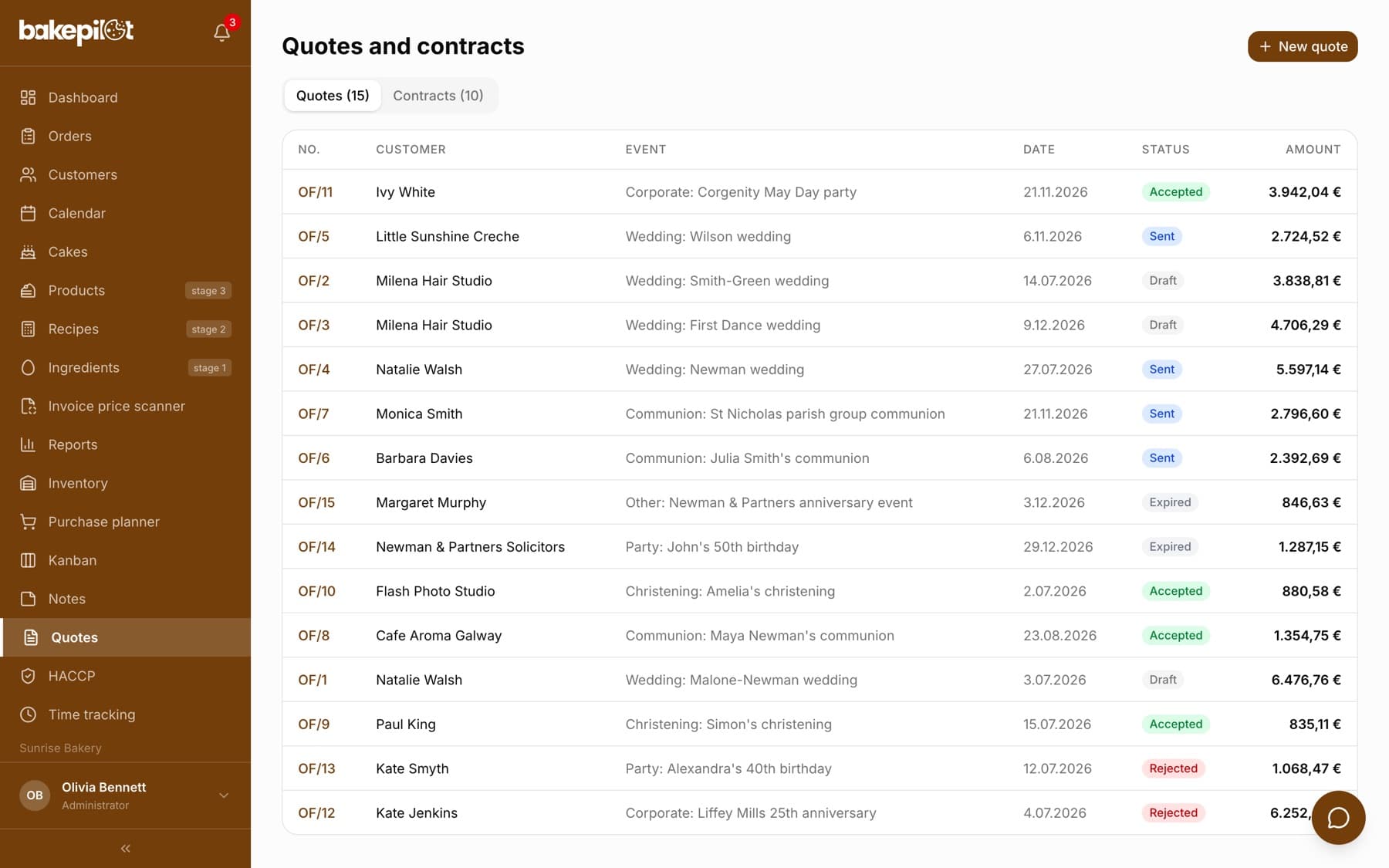
Filling in a quote
The “New quote” form has five sections. You type the items in by hand - the “Product/Service” field is plain text, so you can offer a “3-tier wedding cake” or “Dessert table service” regardless of your product catalog. The discount and the required deposit are entered as amounts. Once a quote is saved it can no longer be edited - if something changes, create a new one.
- Click “New quote” in the Quotes module
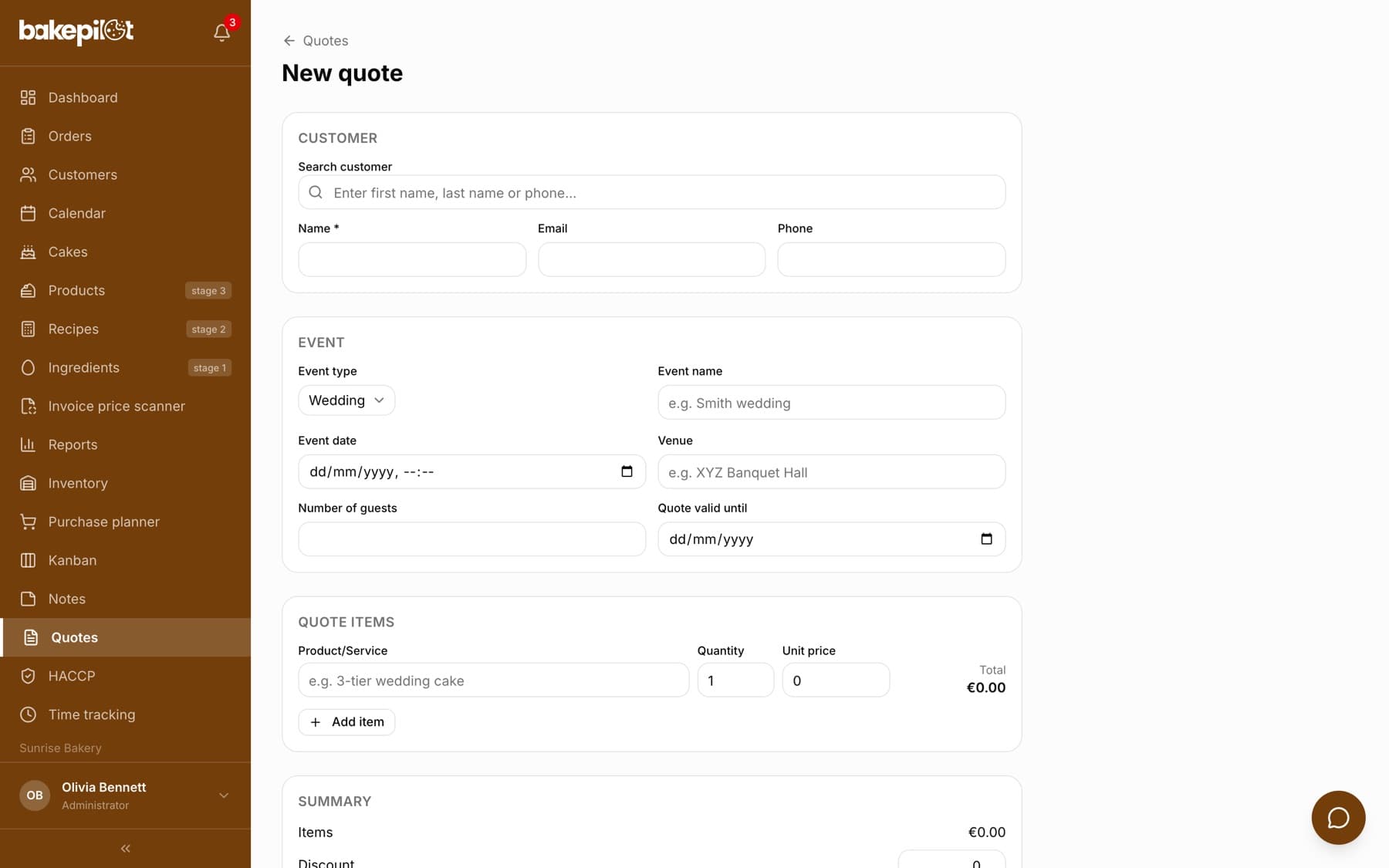
- In the “Customer” section, type a first name, last name or phone in “Search customer” and pick from the suggestions, or fill in “Name”, “Email” and “Phone” by hand
- In the “Event” section, choose the “Event type” (Wedding, Communion, Christening, Party, Corporate, Other) and fill in “Event name”, “Event date”, “Venue” and “Number of guests”
- Set “Quote valid until” - the date until which the price applies
- In the “Quote items” section, enter “Product/Service”, “Quantity” and “Unit price”; add more items with “Add item”
- In “Summary”, enter an optional “Discount” (amount) and “Required deposit”
- Fill in “Notes” and “Quote terms”, then click “Create quote”
Printing and sending
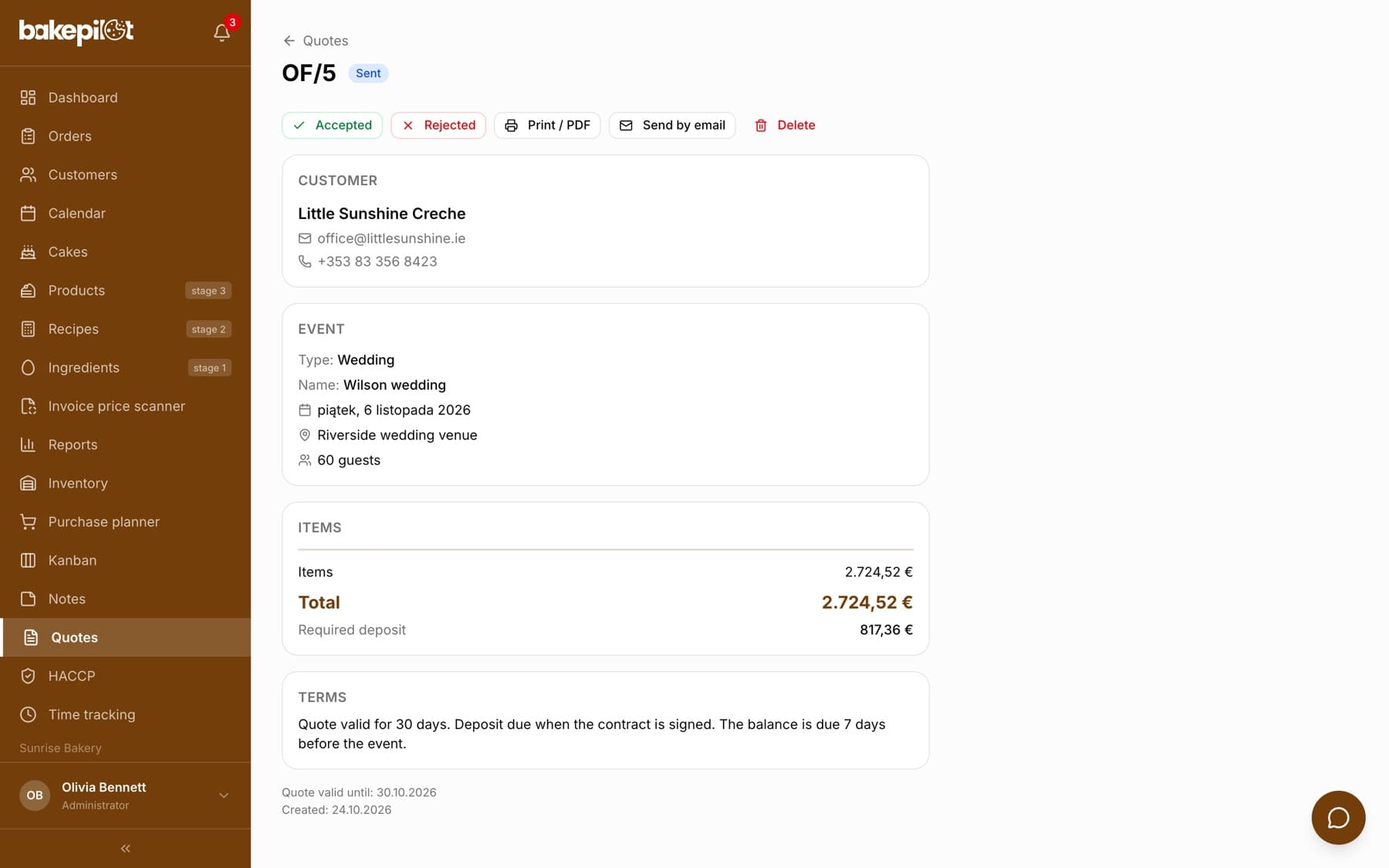
In the quote details, click “Print / PDF” - a layout opens with your company details (name, address, NIP tax ID, phone, email), the “OFERTA” (quote) header with the number, customer details, items, discount and terms. The “Print / Save as PDF” button opens the print window, where you choose a printer or saving to a file. You can also send the quote without leaving the app: “Send by email” opens a window with the “Recipient email”, “Subject (optional)” and “Message (optional)” fields. The customer receives a formatted email with all items from the sender “BakePilot”; when they click “Reply”, the message goes to your bakery's email address from Settings. A quote in the “Draft” status changes to “Sent” automatically. Each send goes to one recipient at a time.
- “Print / PDF” - a printout with your company details, without a logo
- “Send by email” - an email with the items sent from the app
- The address from the customer card is suggested in the “Recipient email” field
- Sending from the app changes a draft to “Sent”
Tip: Sending by email is the only document BakePilot sends to the customer for you. Orders, invoices and contracts you print to PDF and send from your own mailbox.
Frequently asked questions
Can I add a product from the catalog to a quote?
You type quote items in by hand - name, quantity and price. The product catalog is not suggested in the quote form.
Can I correct a quote after saving it?
No. Create a new quote with the corrected details, and delete the old one with the “Delete” button or mark it as “Rejected”.