
Exporting a summary for your accountant
One file with amounts per rate and a list of documents.
Last updated:
How to download the file
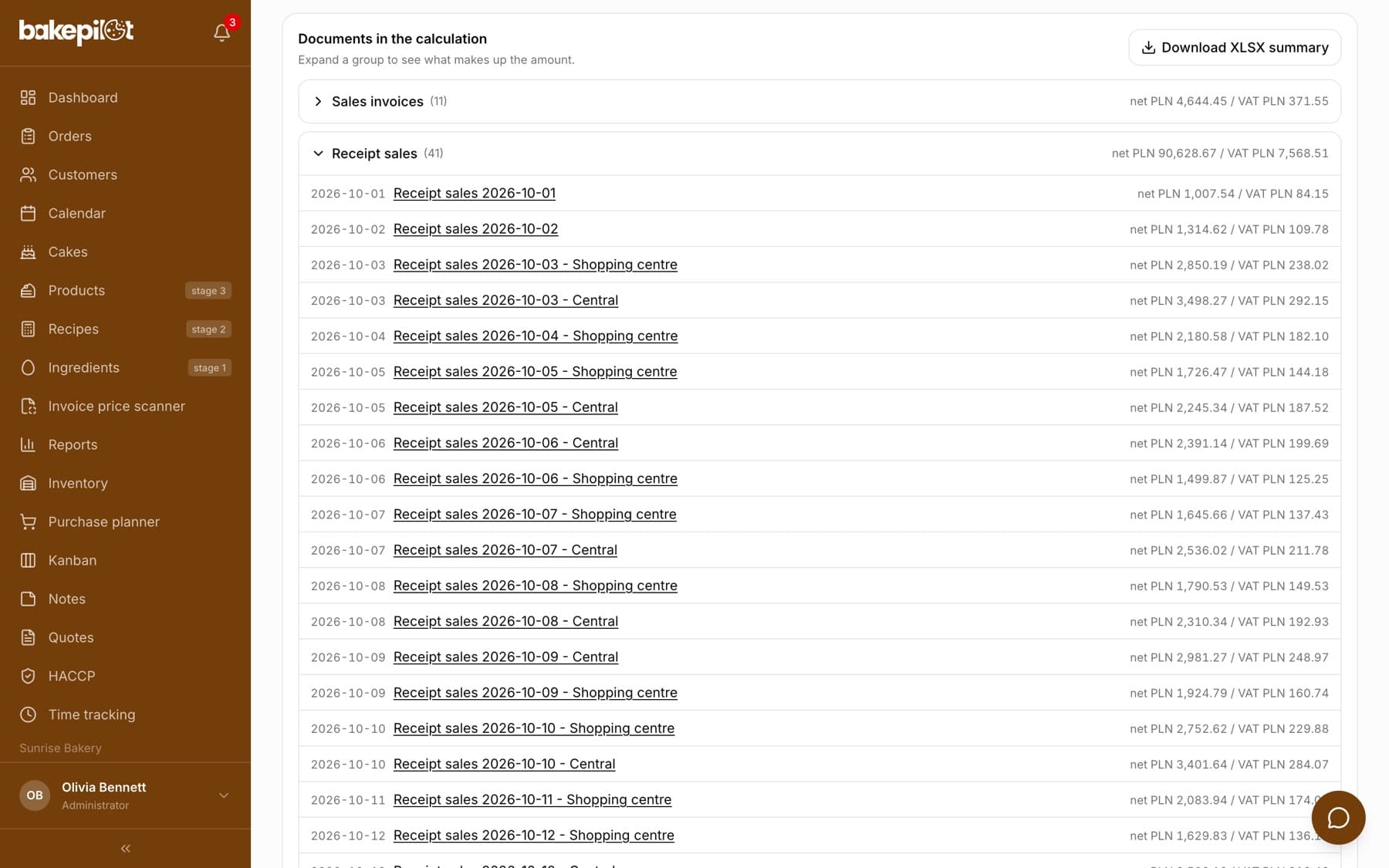
You download the summary from the “Documents in the calculation” section in the Finance tab. It covers the period you have selected at the top of the page.
- Open the “Finance” tab and choose the period with the arrows or from the list
- Scroll to the “Documents in the calculation” section
- Click “Download XLSX summary” - the file is saved on your device
What you get in the file
The Excel file has two sheets. “Summary” contains the company name, NIP (Polish tax identification number), the period and date range, the “Output VAT (sales)” and “Input VAT (purchases)” amounts, the balance with the payment deadline, the “Output VAT by rate” and “Input VAT by rate” tables and a “Notes” section with the same gaps you see on screen. “Documents” is a list of all documents with the date, type, description, net amount and VAT.
- The “Summary” sheet: amounts per rate, balance, payment deadline
- Notes about gaps written directly in the summary
- The “Documents” sheet: sales invoices, receipt sales, purchase invoices, manual costs
- Excel format (XLSX), ready to send by e-mail
What it is for and what it is not for
The file is supporting material: it shortens the conversation with your accountant and lets you quickly show where a given amount came from. It is not an accounting document or a basis for filling in a tax return. Your accounting still works on the original documents - a disclaimer about this is written at the end of the “Summary” sheet.
- Supporting material for the conversation with your accountant
- It is not an accounting document
- It does not replace the tax return or the records
- The original documents still apply
Tip: If your accountant asks about a discrepancy, open the “Documents” sheet - it points to the specific invoices and days that made up the amount.
Before you send it
Before exporting, take a look at the gaps box in the Finance tab. If the split of takings is missing for a few days or some invoices have no VAT amounts read, fill that in first - otherwise you will send a summary with holes that will come back to you as questions anyway.
- Fill in the missing days of the takings split
- Check invoices without VAT amounts read
- Add costs from outside KSeF and the scanner
- Remember that documents in foreign currencies will be skipped
Frequently asked questions
Can my accountant upload this file to accounting software?
It is a supporting summary, not a data exchange file. It is for a quick review of amounts and documents, not for import into an accounting system.
Why does the export include notes about what is missing?
Because the estimate should be honest. If it did not cover something, we want your accountant to know about it too - otherwise they could take an incomplete amount as complete.
Can I export an earlier period?
Yes, you choose the period in the Finance tab, and the export covers exactly what you have on screen.