
Contracts for special-occasion orders
A contract with the customer for a wedding, communion or event - event details, amount, deposit, a printout to sign.
Last updated:
What a contract is for
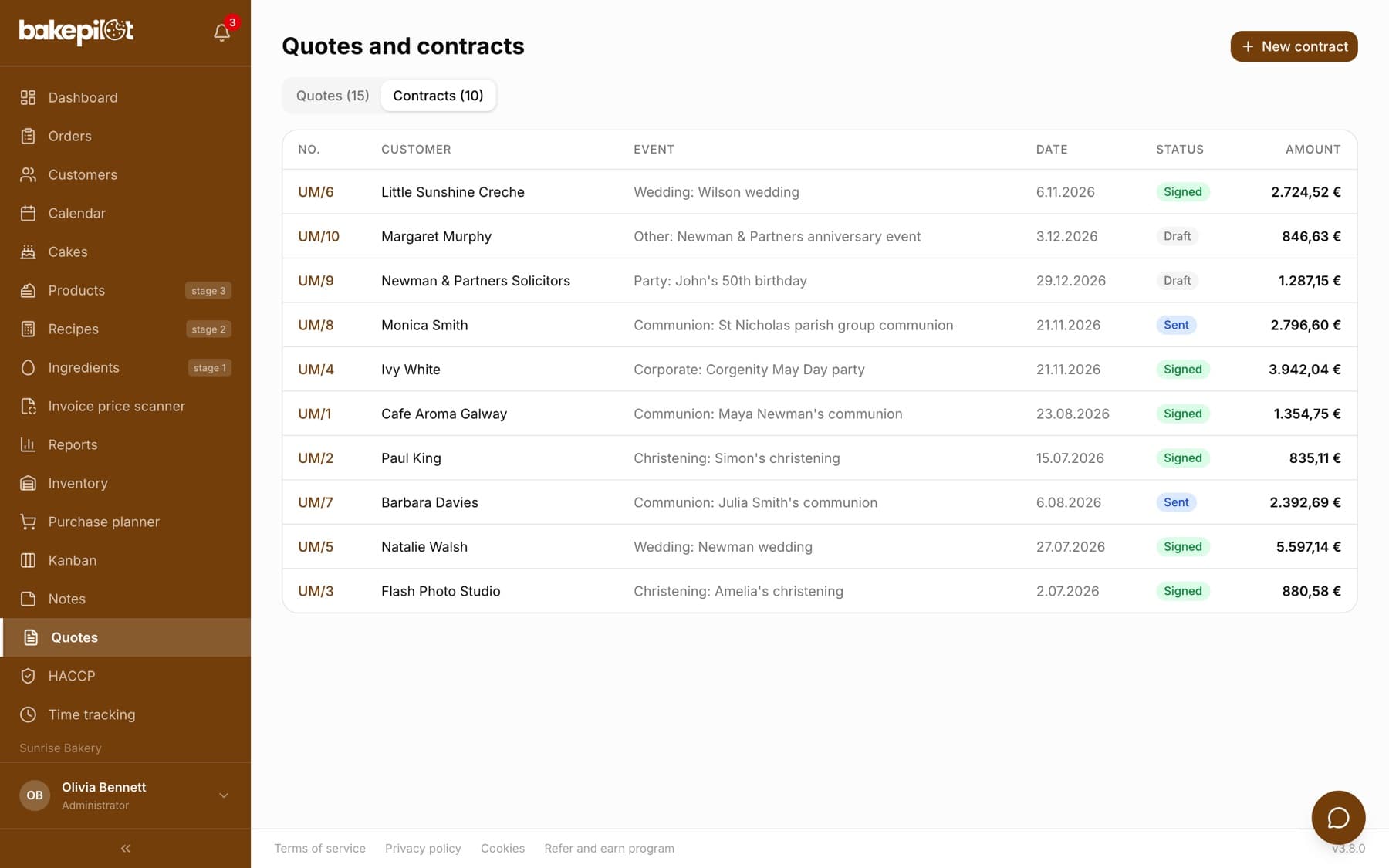
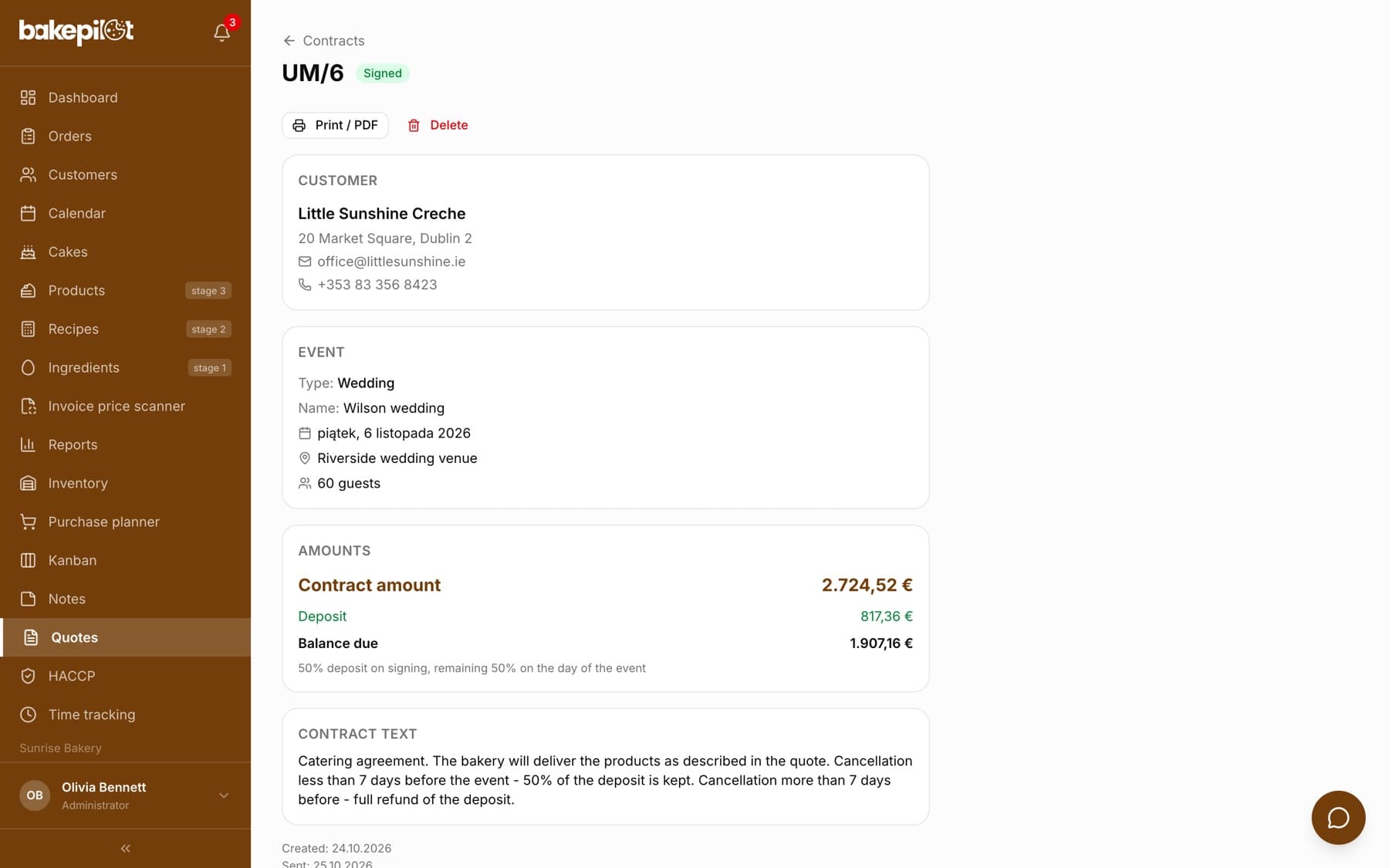
A contract in BakePilot is a document for a large special-occasion order - a wedding, communion, christening or corporate event. It is usually created from an accepted quote (the “Create contract” button) or from scratch with the “New contract” button in the “Contracts” tab. It gathers the customer details, event details, amount, deposit, payment terms and the contract text in one place. You and the customer sign the printout on paper.
- Click “Create contract” in an accepted quote or “New contract” in the “Contracts” tab
- In the “Customer details” section, fill in “Name / Full name”, “Email”, “Phone”, “NIP (optional)” (the Polish tax ID) and “Address”
- In the “Event” section, set the “Type”, “Name”, “Date”, “Venue” and “Number of guests”
- In the “Amounts” section, enter the “Contract amount”, “Deposit” and “Payment terms”
- In the “Contract text” section, enter the provisions, then click “Create contract”
Contract statuses and printing
A contract goes through the “Draft”, “Sent”, “Signed” and “Cancelled” statuses. In the details you set them with the “Mark as sent”, “Signed” and “Cancel” buttons; the sent and signed dates are saved with the contract. The “Amounts” section shows the contract amount, the deposit and the calculated “Balance due”. “Print / PDF” opens a print layout that you can also save as PDF. A contract created from a quote has a “view quote” link at the bottom.
- “Draft” / “Sent” / “Signed” / “Cancelled”
- Created, sent and signed dates shown below the contract
- “Contract amount”, “Deposit” and “Balance due” in the “Amounts” section
- “Print / PDF” for printing and saving as PDF
Tip: A standing price list for wholesale customers (shops, cafes) is a different feature - you set it up with a B2B price on products and a discount on the customer. See the “Wholesale (B2B)” article.
Changing and deleting a contract
As with quotes, you do not edit a saved contract - in its details you only change the status: “Mark as sent” (from a draft), “Signed” (from a draft or sent) and “Cancel” (until the contract is signed). Status changes are made by default by the administrator and salesperson. A contract with a mistake is deleted and created again - from the quote or with the “New contract” button. The “Delete” button works as for quotes: the first click shows “Are you sure?”, and a second click within 3 seconds deletes the contract and returns to the “Contracts” tab.
- “Cancel” keeps the contract on the list with the “Cancelled” status - a record remains
- “Delete” removes the contract permanently; by default the administrator can delete
- Deleting a contract does not change the status of the quote it came from - the quote stays “Accepted” and can be deleted again
Frequently asked questions
Can I record a deposit payment on a contract?
The contract stores the deposit amount and payment terms, but has no field for the payment date. Record the payment on the order (the “Deposit” section) or issue an advance invoice.
Can I email a contract from the app?
No - only quotes can be sent by email. Save the contract as PDF with “Print / PDF” and send it from your own mailbox.