
Temperature monitoring
Recording and tracking temperatures in fridges, freezers and cold rooms.
Last updated:
Adding devices
Start with the “Devices” tab. For each device you enter a name, type, location and acceptable temperature range. Once you choose the type, the app suggests a typical range, which you can change.
- Open “HACCP”, go to the “Devices” tab and click “Add”
- Enter the “Name” (e.g. Fridge #1) and choose the “Type”: Fridge, Freezer, Cold room, Vehicle, Oven or Other
- Optionally enter the “Location” (e.g. Main kitchen)
- Adjust “Min °C” and “Max °C” if the suggested range does not fit
- Click “Add device”
- Fridge: suggested 0 to 5 °C
- Freezer: -22 to -16 °C
- Cold room: 0 to 4 °C
- Vehicle: 0 to 6 °C
- Oven: 150 to 250 °C
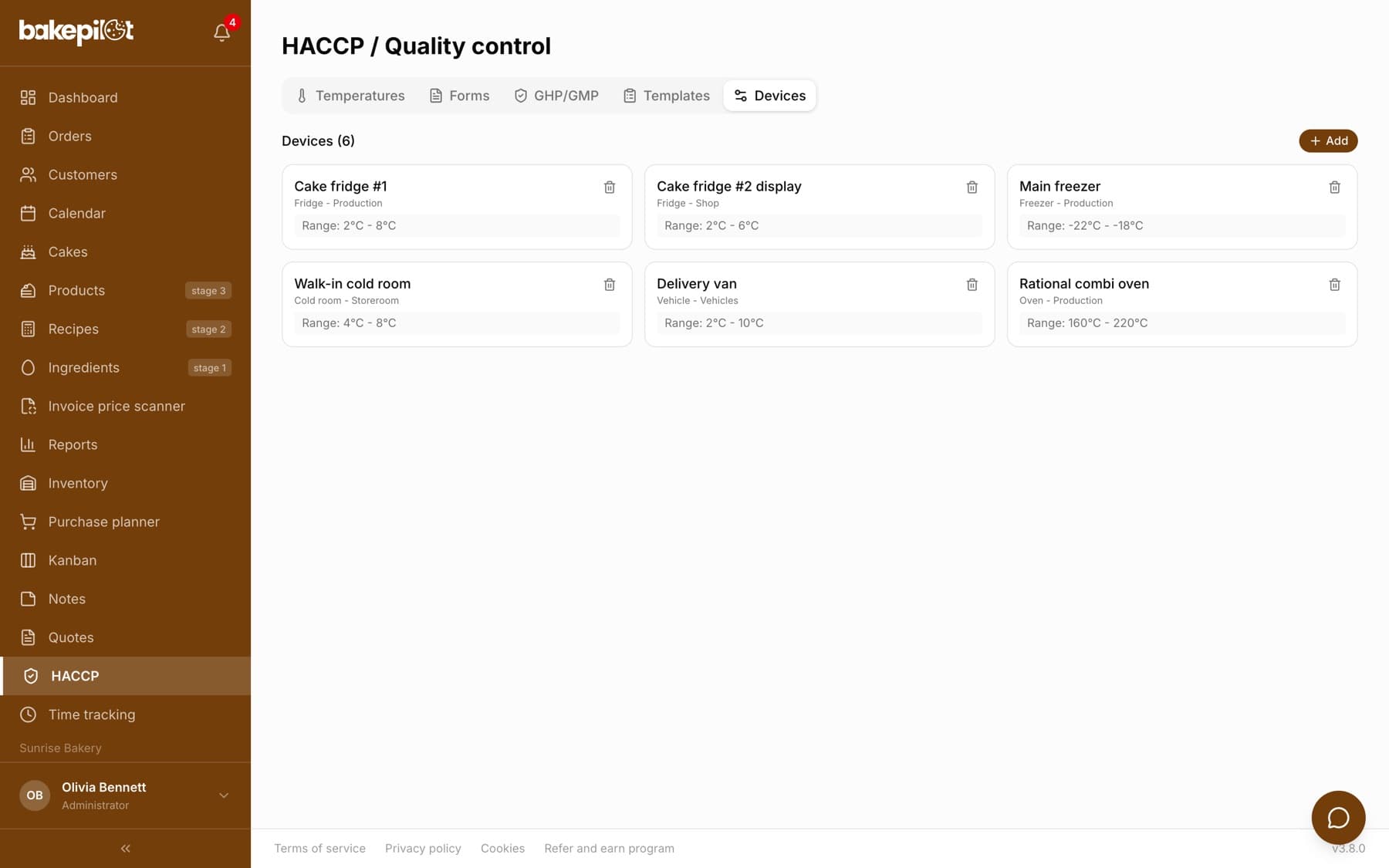
Tip: Devices you no longer use can be deactivated with the trash icon on the device card - the reading history stays.
Recording readings
You enter readings on the “Temperatures” tab in the “Daily” view, in the “New temperature reading” section. The app checks the value against the device range. If the temperature is out of range, the field turns red and you see the message “Temperature out of range!” with the range, plus a field to describe the corrective action.
- On the “Temperatures” tab, choose the “Device” from the list - its range appears below
- Enter the “Temperature (°C)”
- If a warning appears, describe the corrective action you took
- Click “Save reading” - you will see the confirmation “Temperature saved - in range” or “OUT OF RANGE”
- Quick entry from your phone - two fields and a button
- Automatic comparison with the device range
- An “OK” or “Alarm” status for every reading
- A description of the corrective action when the limit is exceeded
Tip: Set a reminder on your phone at fixed times, e.g. 8:00 and 16:00. Regular readings are the foundation of HACCP.
Daily history
Below the form is the “Readings from” list with arrows to move between days. The table has the columns “Device”, “Time”, “Temp.”, “Status” and “Notes”, and below it the counters “In range”, “Out of range” and “Readings”. You delete a wrong entry with the trash icon in its row: the app asks “Delete this reading?”, and after you confirm, the reading disappears from the day history and from the monthly view.
- By default only the Administrator can delete readings - you can change this in the permission matrix
- Deleting cannot be undone
Monthly view and printing
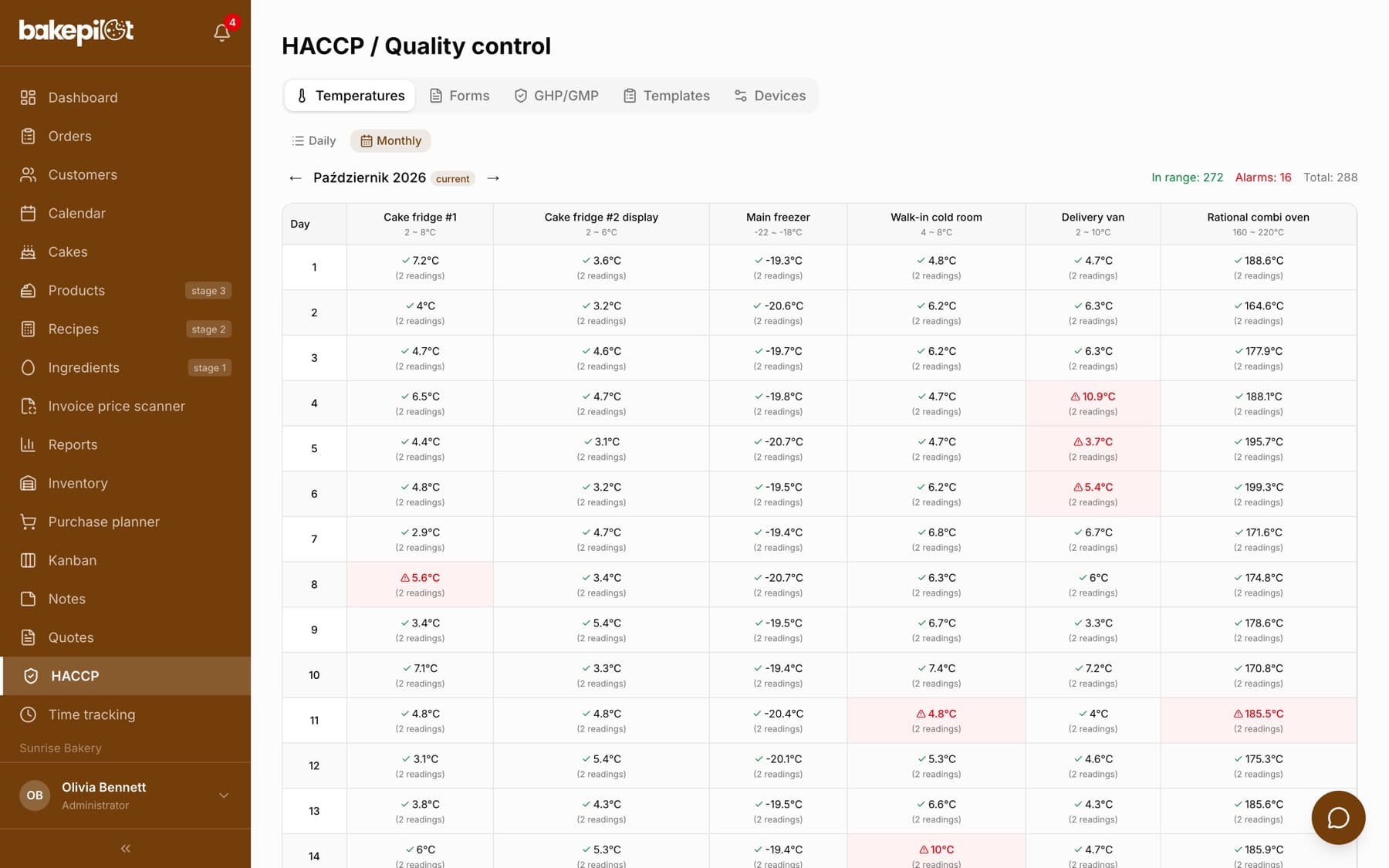
The “Monthly” switch arranges readings in a grid: days in rows, devices in columns, and in each cell the last reading of the day and the number of readings. Cells with an exceeded limit are highlighted in red, and at the top there are the counters “In range”, “Alarms” and “Total”. The “Print table” button opens the browser print dialog, where you can choose to save as PDF.
- A day-by-day grid for each device
- Arrows to change the month
- Clear marking of days with an alarm
- “Print table” - print or save as PDF
Prefer paper? Download a blank temperature log (PDF)
Entering a reading from the monthly view
You can click a grid cell (device and day). A window opens with the device name and date, showing the “Readings from this day” list with the time, temperature, corrective action and notes. Saved readings cannot be changed - below the list is the “New reading” section, which saves another reading with the date of the clicked day. Future days cannot be clicked.
- In the “Monthly” view, click the device cell on the chosen day
- Enter the “Temperature (°C)” - it accepts a minus sign and a decimal comma, e.g. -18 or 3,5; the “+/-” button changes the sign when your phone keyboard has no minus
- Check the “Time” - for today it is set to the current time, for another day you need to enter it
- If the temperature is out of range, describe the corrective action in the red field
- Optionally add “Notes” and click “Save reading”
- After saving, the cell shows the new reading and turns red if it is out of range
- Without the permission to record readings, the window only shows saved readings
Frequently asked questions
Can I enter several readings a day for one device?
Yes. Each reading has its own time, and in the monthly view the cell shows the last reading and the number of readings that day.
What happens when I enter a temperature out of range?
The reading is saved with the “Alarm” status together with the description of the corrective action, and team members using the mobile app get a “HACCP alert” notification.