
Control forms and GHP/GMP procedures
Form templates, filling them in and monthly summaries to print.
Last updated:
Ready-made templates
When your account is created, BakePilot sets up five form templates, visible on the “Templates” tab. Each has a set of fields - checkboxes, numbers, times, descriptions - that you can adapt to your pastry shop.
- “Cleanliness checklist” - a monthly list of washing and disinfection tasks
- “Equipment temperature checklist”
- “Vehicle cleaning and disinfection log”
- “Vehicle cold compartment temperature sheet”
- “Egg disinfection checklist”
Filling in forms
You fill in forms on the “Forms” tab in the “List” view. On a phone it takes a few taps - you tick the checkboxes, enter the values and save. A completed form goes to the “Completed forms” list with the “Completed” status.
- On the “Forms” tab, in the “Fill in a form” section, click the template name
- Set the “Document date” (today by default)
- Fill in the form fields - fields with an asterisk are required
- Optionally add “Additional notes”
- Click “Save form”
- A list of completed forms with the columns “Document”, “Date”, “Status”, “Completed by”, “Notes”
- Statuses: “Draft”, “Completed”, “Reviewed”
- Preview a form with the eye icon, which has the “Print” and “Mark as reviewed” buttons
Tip: “Mark as reviewed” is useful when the owner checks forms completed by the team: the button is in the preview of a form with the “Completed” status, and after you click it the status changes to “Reviewed” and the app records who reviewed it and when. By default only the Administrator can review forms (you can change this in the permission matrix).
Monthly view and printing
For a Sanepid inspection, use the “Monthly” view on the “Forms” tab. You choose a sheet (template), and the app arranges its fields in rows and the days of the month in columns, with a “Days completed” counter. The “Print table” button opens the print dialog, where you can choose “Save as PDF”. A single completed form also has its own printout - the “Print” button in the preview.
- A monthly grid of form fields day by day
- Arrows to change the month
- Print the monthly table or a single form
Tip: Print the monthly summaries at the end of each month - you always have up-to-date records in case of an unannounced inspection.
Entering data from the monthly view
You can fill in the monthly sheet without opening the form. Clicking a yes/no field on a given day immediately adds a tick (done), and another click changes it to an X (not done). The entry is saved about one and a half seconds after the last click on that cell, so an accidental tap corrected with a second click saves nothing. Other fields, such as “Notes” or “Time”, open a small window with an input field and a “Save” button and are saved immediately. Each change is saved as a new entry for that day, and the table shows the latest entry of the day - earlier ones stay in the history on the form list.
- You see the change immediately; if saving fails, the field returns to its previous state with the message “The entry could not be saved”
- Future days cannot be clicked
- Entering data requires the permission to fill in forms - without it the table is read-only
- On the printout, completed fields have an “X”, as on a paper sheet, and fields not done have the word “no” - a day without an entry has “-”
Delivery days under vehicle sheets
Under the “Vehicle cleaning and disinfection log” and the “Vehicle cold compartment temperature sheet”, the monthly view shows a “Delivery days” section: the days of the month on which the pastry shop had orders with delivery, e.g. “October 3, 5, 12 (3 days)”. Orders marked for delivery count, excluding drafts and cancelled orders. In the current month the list ends on today - orders for the coming days appear once that day arrives. The section is also on the table printout, so during an inspection it is clear on which days the vehicle was out and should have an entry.
- Dates only - no customers or order amounts
- A vehicle sheet is a template of the “Vehicle cleaning” type or a sheet whose name contains the word “pojazd” or “samochod” (Polish for vehicle and car)
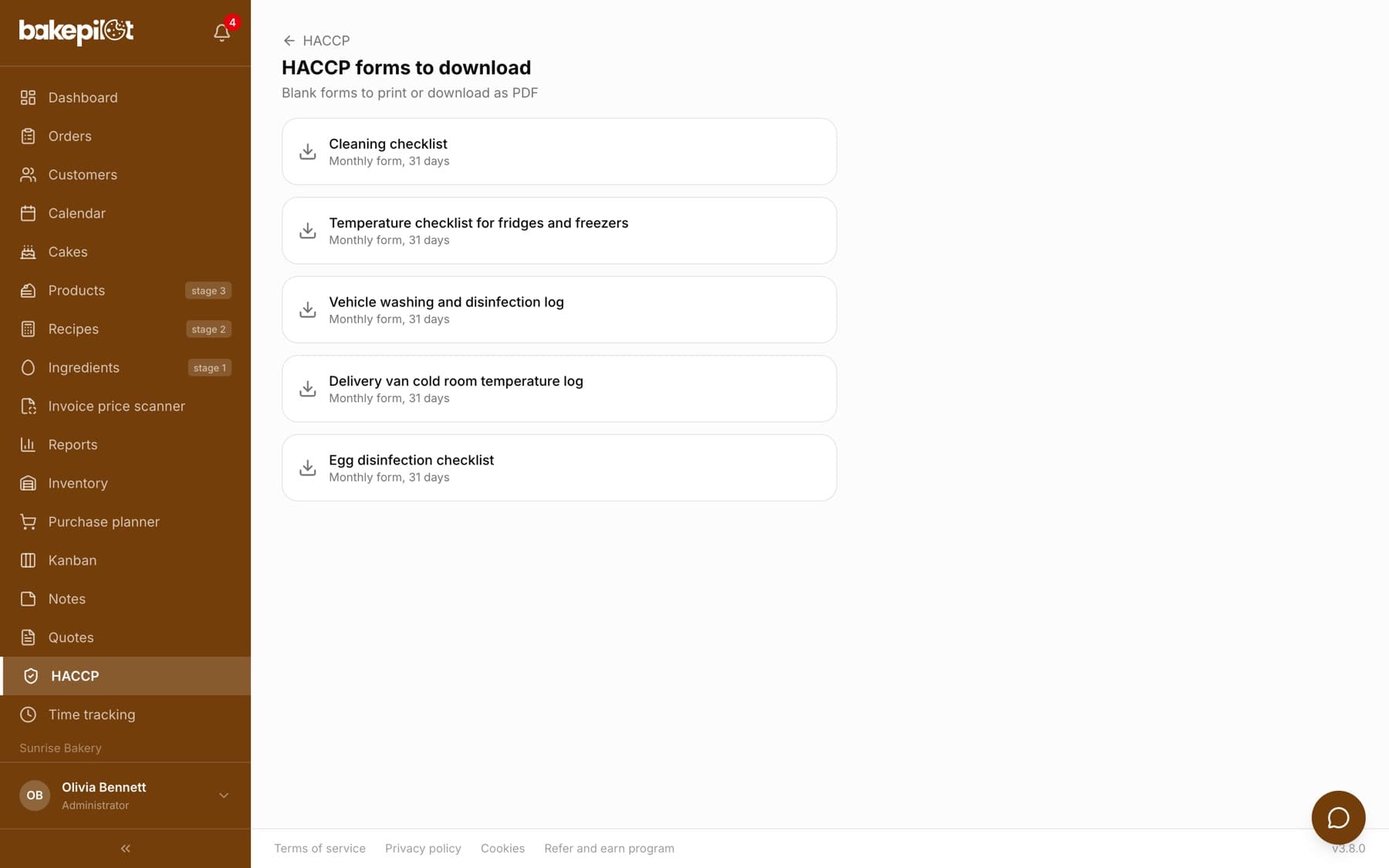
Blank forms to download
If you still keep some checks on paper, the “Download blank forms” button on the “Forms” tab opens the “HACCP forms to download” page with five blank forms. You choose the month and year, and the “Print / PDF” button prints the form with a row for each day.
- “Cleaning checklist”
- “Fridge and freezer temperature checklist”
- “Vehicle washing and disinfection log”
- “Delivery van cold room temperature log”
- “Egg disinfection checklist”
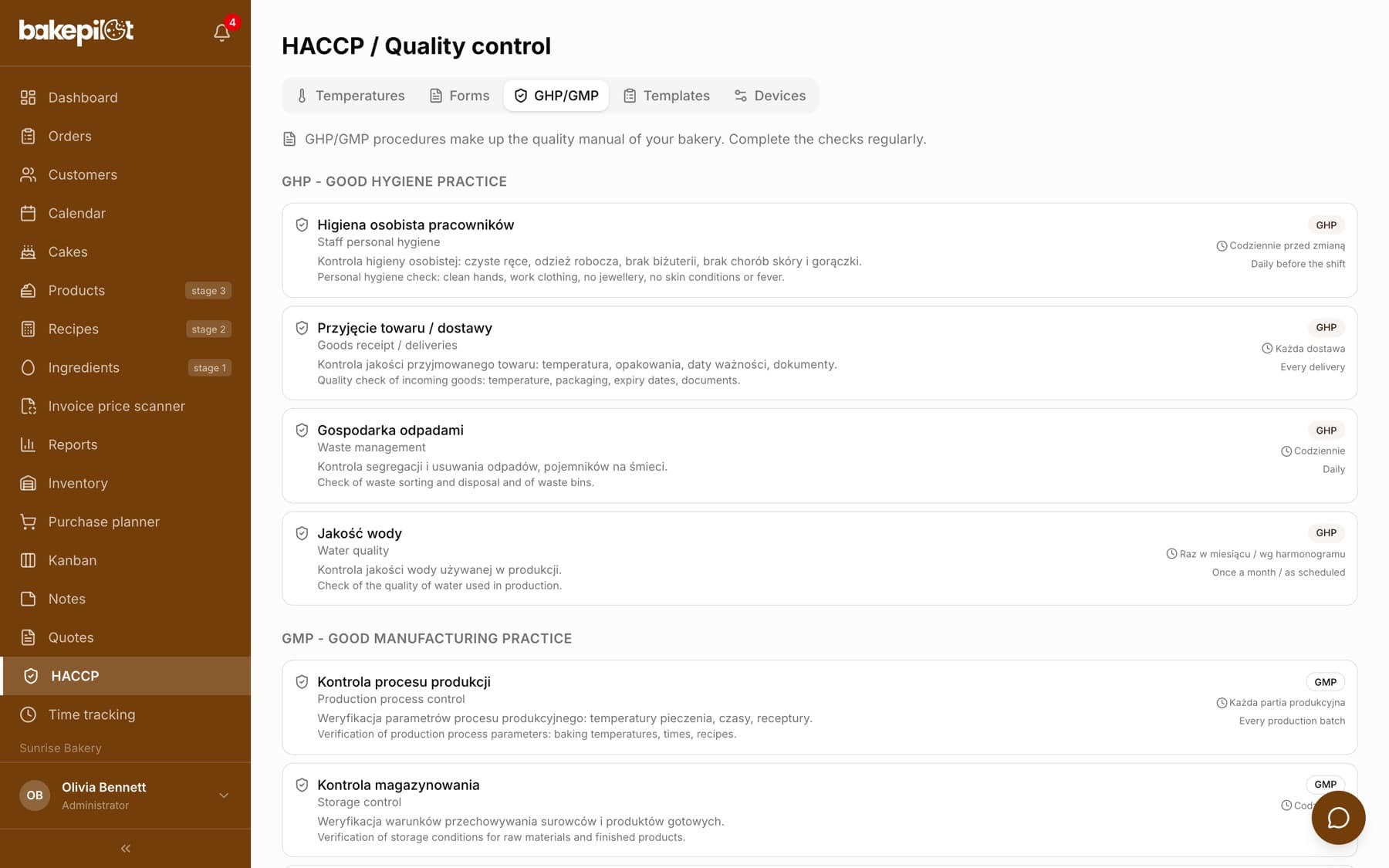
GHP/GMP procedures
The “GHP/GMP” tab contains eight ready-made procedures: four from Good Hygiene Practice and four from Good Manufacturing Practice. Each has a description, a frequency (e.g. “Daily before the shift”, “Every delivery”) and, when clicked, expands a list of control points. At the bottom of the tab there are the counters “Done today”, “To do” and “Procedures in total”.
- GHP: Staff personal hygiene, Goods receipt / deliveries, Waste management, Water quality
- GMP: Production process control, Storage control, Staff training, Pest control (DDD)
Editing templates and version history
On the “Templates” tab each form has three icons: “Version history”, “Edit template” and “Deactivate template”. Editing lets you change the name, type, description and fields - add new ones, change the label, field type and the “Required” setting, and move fields with “Move up” or “Move down”. Each save creates a new template version with the reason for the change, and forms completed earlier remember which version they were created from.
- On the “Templates” tab, click the pencil icon “Edit template”
- Change the “Template name”, “Type” or “Description”
- In the “Form fields” section, click “Add field” and set the “Label”, “Field type” and “Required”
- Enter the “Reason for change (for the Sanepid audit)”, e.g. Added a humidity check field
- Click “Save (new version)”
- Field types: Checkbox, Text, Number, Text area, Drop-down list, Date, Time
- “Version history” shows who changed the template, when and why
- A deactivated template disappears from the list of forms to fill in, completed forms stay
Frequently asked questions
Can I create a completely new form?
New forms are created by editing existing templates - you change the name, type and set of fields, and the app saves this as a new version. There is no separate “new template” button on the tab.
What does the printout of a single form show?
The form name, date, status, who completed it, a table of control points with an X next to the ticked ones, the other fields with their values, notes and a place for a signature. The footer shows the template version number.