
API authentication
How to generate an API key, add it to requests and store it securely.
Last updated:
Generating an API key
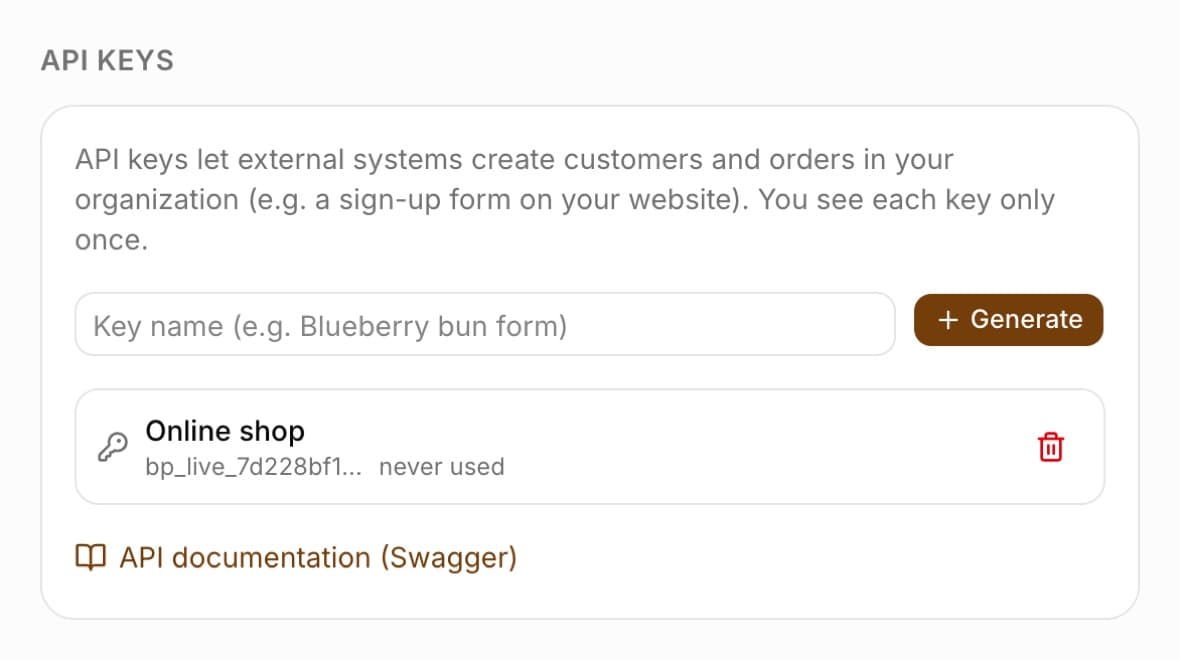
Keys are generated by the Administrator in Settings, in the “API keys” section. Each key has a name that helps you recognize it on the list, and is shown in full only once - we store only its hash in the database. Later the list shows only the beginning of the key and the date it was last used.
- Open Settings, the “API keys” section
- Enter a name in the “Key name (e.g. Blueberry bun form)” field and click “Generate”
- Copy the key from the “Copy the key now - we will not show it again.” box using the copy icon
- Click “I have saved the key - hide”
Important: Never put an API key in website code that runs in the browser (JavaScript). Use it only on the server side.
Authenticating requests
Every request must include the key - in the Authorization (Bearer) header or in the X-API-Key header. Requests without a key or with an invalid key return error 401. The key itself identifies your organization, so you don't provide its number or NIP (Polish tax identification number).
- Header: Authorization: Bearer bp_live_xxx
- Alternatively: X-API-Key: bp_live_xxx
- Error 401 when the key is missing or wrong
- Error 403 with the code plan_required when the organization is on the Podstawowy (Starter) plan
- Limit: 120 requests per minute per key
Revoking and security
An API key gives access to your organization's data - treat it like a password. Store it in environment variables, not in the source code. If you suspect a leak, revoke the key with the trash icon on the list in the “API keys” section and generate a new one; a revoked key stops working immediately.
- The “Revoke key” trash icon next to each key on the list
- The list shows the beginning of the key and the date it was last used (“never used” when there have been no requests)
- Store the key in environment variables (.env), not in the repository
- A separate key for each integration - it is easier to revoke one without breaking the rest